

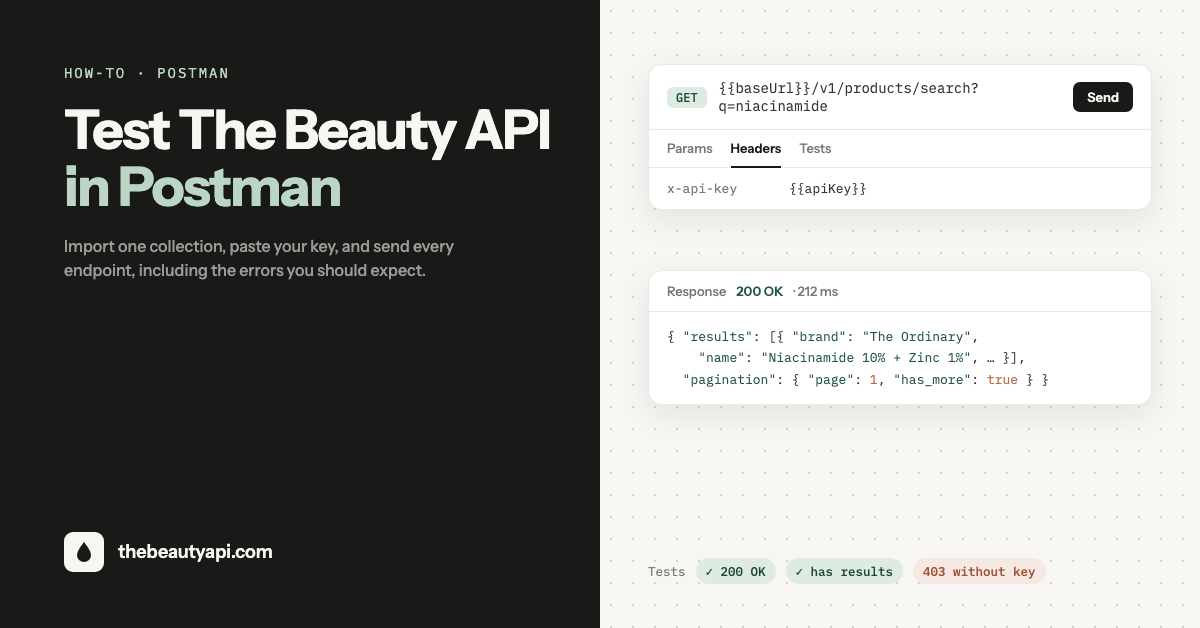
Executive Summary: The fastest way to evaluate The Beauty API is to import our ready-made Postman collection, paste your key into one variable, and press Send. This guide walks through the collection folder by folder: a health check that needs no key, product search and the full ingredient record, filters and batch lookups, ingredient search, and a folder of requests that are supposed to fail so you can see exactly what a 400, 403 and 404 look like before your code meets them.
Postman is the quickest way to get a feel for an API before writing any code: you can see the exact request, the exact response, and try variations without touching a terminal. We publish a collection that covers every endpoint of The Beauty API, with a small test script on each request so the Test Results tab tells you at a glance whether the call behaved as expected.
Step 1: Get an API key
Sign in at the developer dashboard and create a key. The free Sandbox plan gives 100 calls a month, which is plenty for this walkthrough. Keys are shown once, so copy it somewhere safe. If you want to try barcode lookup you need a barcode-enabled plan; everything else in the collection works on Sandbox.
Step 2: Import the collection
Download the collection file (the-beauty-api.postman_collection.json, Postman v2.1 format). In Postman choose File → Import and drop the file in, or drag it onto the sidebar. You will see a collection called The Beauty API with four folders:
- Start here: health, search, get a product
- Products: filters, batch, barcode
- Ingredients: search, get an ingredient
- Errors you should expect: requests that are meant to fail
Each request has a description explaining what it does and what to look for. Open the collection's own description for the short version of everything on this page.
Step 3: Set your key
Click the collection name, open the Variables tab, and paste your key into the Current value column of apiKey. Leave Initial value empty: current values stay on your machine, initial values are included if you ever export or share the collection.
The collection's Authorization tab is already set to API Key, header x-api-key, value {{apiKey}}, and every request inherits it. You never need to add the header by hand. The other variables are:
baseUrl:https://api.thebeautyapi.com. The same base URL serves every plan, barcode-enabled plans included.productIdandingredientId: prefilled with The Ordinary's Niacinamide 10% + Zinc 1% and the ingredient Niacinamide. The search requests overwrite them with the first result, so you can search then immediately open the full record.barcode: an example UPC for the barcode endpoint.
Step 4: Send the first three requests
Health. Send this first. It needs no key and returns the dataset build: product and ingredient counts and the build date. If it fails, the problem is your network or a typo in baseUrl, not your key.
{ "status": "ok", "products": 179174, "ingredients": 22472, "built_at": "2026-08-17T05:06:29.601Z" }Search products. GET /v1/products/search?q=ordinary niacinamide&page=1. Search matches brand and name, prefix-friendly, 20 results a page. The response is deliberately light (id, brand, name, category, image_url) so it is cheap to call from an autocomplete box. The test script stores the first result's id in productId.
Get a product. GET /v1/products/{{productId}}. This is the record most apps build on: the five free-from flags and the full ingredient list in label order, each ingredient joined to its INCI name, functions, rating, irritancy and comedogenicity. In the Tests tab you will see a check that position starts at 0 and counts up; the array is always in the order printed on the packaging.
Step 5: Filters, batch and ingredients
The Products folder shows the discovery endpoint three ways: fragrance-free skincare (category plus one of the five free-from booleans), products that contain an ingredient (has_ingredient), and products that exclude ingredients (excludes_ingredient, up to ten comma-separated ids). Change the query parameters in the Params tab and resend; Postman keeps the URL in sync.
Batch is a POST with a JSON body of up to 50 ids and returns full records in one round trip. Paste more ids into the array from any search response to see how a routine of several products comes back together.
The Ingredients folder searches by canonical name and synonyms (try vitamin b3; it finds Niacinamide) and fetches the full scientific record with CAS and EC numbers. The ingredient ids are what the product filters above take.
Step 6: Look at the errors on purpose
The last folder is the one most walkthroughs skip. Every request in it is meant to fail, or to succeed with nothing, and its test passes when the API responds the way it should. Send each one and read the body:
| Request | What comes back | What it means for your code |
|---|---|---|
| Missing API key | 403 "Invalid or missing API key" | The key is absent, wrong, or disabled. In Postman, check the apiKey current value. |
Nonsense search string (q=asdfghjkl) | 200, results: [], has_more: false | No match is not an error. Render an empty state, do not retry. |
Symbols-only search (q=???) | 400 "q contains no searchable characters" | Strip punctuation from user input before sending. |
Page beyond the maximum (page=99) | 400 | Pages run 1 to 51. Stop when has_more is false. |
| Malformed product id | 400 | Ids are UUIDs; validate before calling. |
| Unknown product id | 404 | Well-formed but nothing there. Treat as "not found", not as a bug. |
Batch with an empty ids array | 400 | The body needs 1 to 50 ids. |
Two more you may meet outside the collection: 429 when you exceed the plan's rate limit or monthly quota (no rate-limit headers are sent, so back off and retry with an exponential delay), and 403 from the barcode endpoint on a plan without barcode lookup. The full list is under Errors in the API documentation.
From Postman to code
Once a request does what you want, use Postman's Code button (the </> icon on the right) to copy it as curl, JavaScript fetch, Python requests or any other language. Keep the key on your server and read it from an environment variable; never ship it in a browser bundle or a mobile app. For a worked example of turning these calls into a feature, see how to build a skincare recommender app with the API.
Frequently asked questions
Do I need a paid plan to use the collection?
No. Everything except barcode lookup runs on the free Sandbox plan (100 calls a month). The collection has 17 requests, so one full pass uses 17 calls.
Why does Health work without a key but Search does not?
Health is a public liveness check. Every /v1 endpoint requires x-api-key.
Can I run the whole collection at once?
Yes. Right-click the collection and choose Run collection. The Collection Runner sends every request in order and shows the test results in one screen; the error folder should be all green, because its tests expect the error codes.
Is my key stored in the file?
Not if you keep it in the Current value column, as described in Step 3. The downloaded file ships with apiKey empty.
The bottom line
Import the collection, paste one variable, send Health, then work down the folders. Ten minutes in Postman shows you the shape of every response, including the failures, before you write a line of integration code. When you are ready, the documentation has the field-level reference and the dashboard has your usage.